Tutorials
Step-by-step guides for every FC Helper feature. New here? Start with Tutorial 01 or learn how FC Helper works.
Installing FC Helper
Get FC Helper on Chrome or Firefox in under 30 seconds.
Your First SBC Solve
Open a challenge, tap Find Squad, let FC Helper fill it.
Price Indicators
Live market prices on every player card, everywhere.
Club Info Widget
Player count, coins, and duplicate badges at a glance.
Pack Opening & Auto-Actions
Open all packs with configurable card routing.
Batch Solve
Solve every daily SBC in one automated sequence.
Set Solve
Complete every challenge in a set, fully automated.
Repeat Solve
Run repeatable SBCs multiple times with one click.
Quick List & Bulk Actions
One-tap listing at market price, plus bulk tools for transfer list and unassigned pile.
Installing FC Helper
Install on Chrome or Firefox in seconds. No account, no setup.
Go to your browser's extension store
Visit the Chrome Web Store or Firefox Add-ons page.
Click "Add to Chrome" or "Add to Firefox"
Confirm the permission prompt. FC Helper only needs access to the EA FC Web App domain.
Open the EA FC Web App
Navigate to fc.ea.com. FC Helper activates automatically — the club widget bar, price indicators, and duplicate badges appear across all screens.
Your First SBC Solve
Solving an SBC takes three clicks. Here's how.
Open any SBC challenge
Navigate to SBC in the EA Web App and open any challenge.
Tap the green "Find Squad" button
A green Find Squad button appears on the pitch view of every SBC challenge. Tap it to open the FC Helper panel.
Configure source and filters
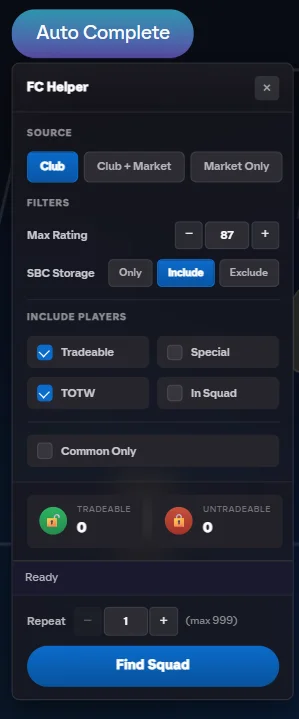
Choose your Source (Club, Club + Market, or Market Only), set Max Rating, SBC Storage (Only / Include / Exclude), and toggle checkboxes: Tradeable, Special, TOTW, In Squad, Common Only.
Tap "Find Squad" and review
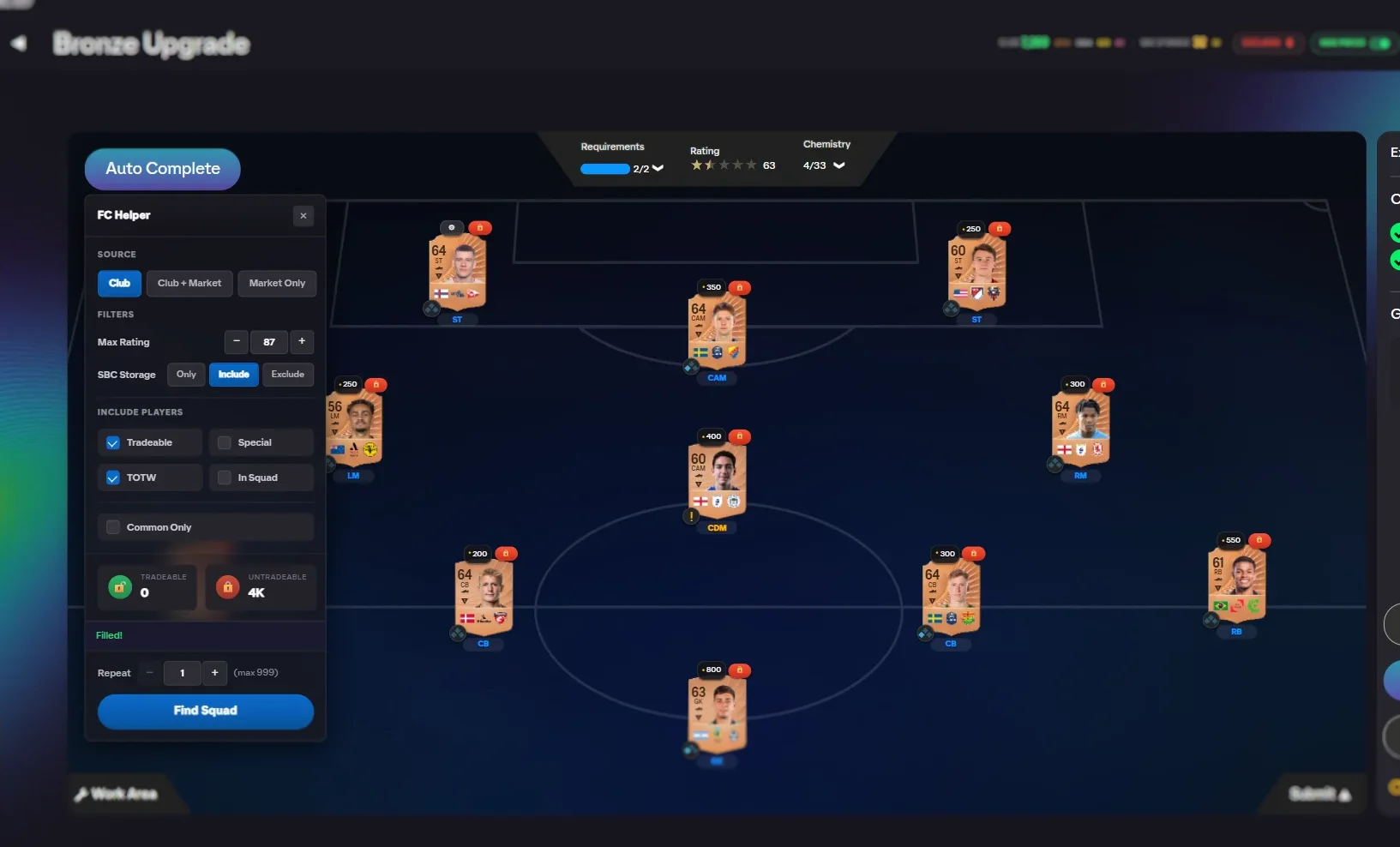
Every slot fills with the cheapest eligible players. Each card shows its market price. The panel displays Tradeable and Untradeable squad value totals. Review, then hit EA's Submit.
Understanding Price Indicators
Live transfer market prices on every player card.
Prices appear automatically
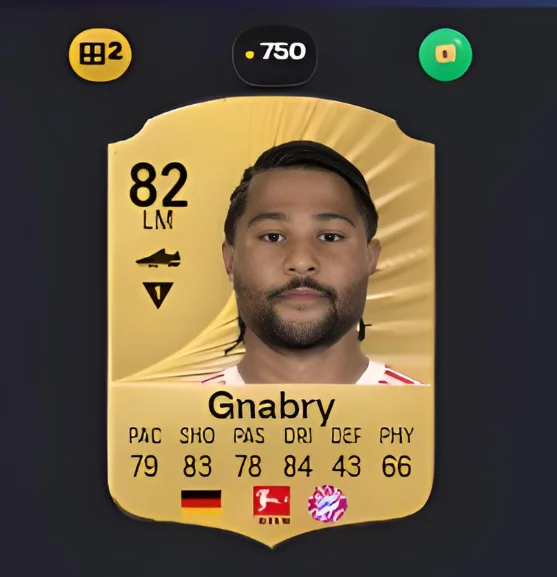
Price badges show on player cards throughout the Web App as soon as FC Helper loads.
Prices everywhere
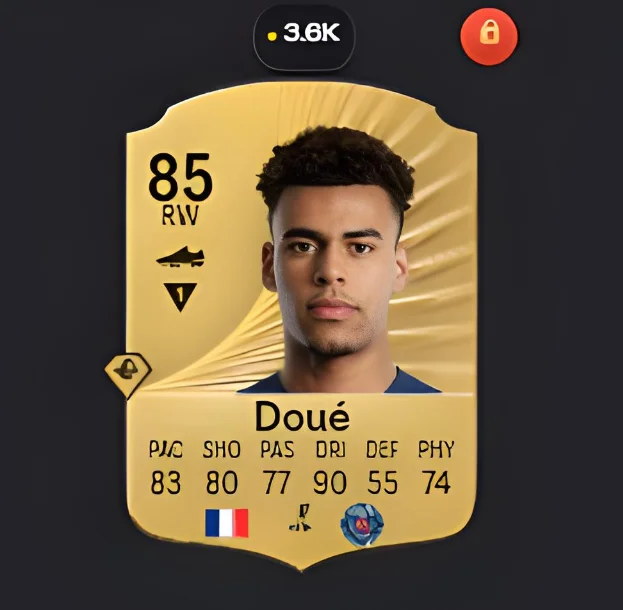
In your club (market value), on the transfer market (buy-now), and in packs (card worth).
Using the Club Info Widget
Always-visible bar in the navbar with your full club breakdown.
The widget bar appears in the navigation
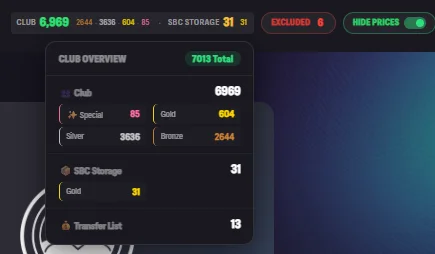
Shows CLUB total, rating tier breakdown (Special, Gold, Silver, Bronze), SBC STORAGE count, EXCLUDED count, and a HIDE PRICES toggle.
Click for the Club Overview dropdown
Expands to show Club Overview — N Total with detailed counts: Club, Special, Gold, Silver, Bronze, SBC Storage (with Gold breakdown), and Transfer List.
Pack Opening & Auto-Actions
Open all packs in one sequence with per-item-type routing rules.
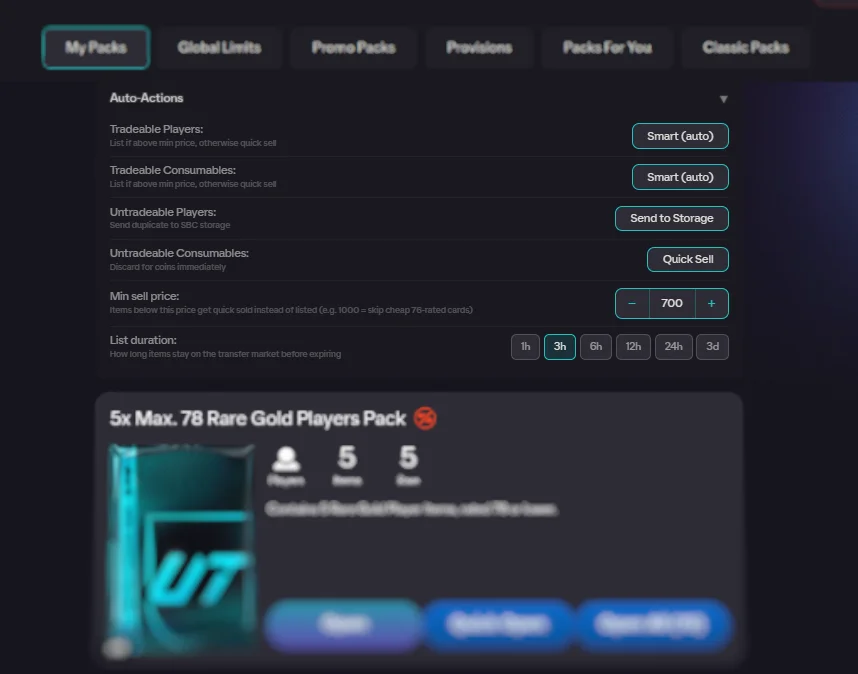
Configure Auto-Actions first
Set four dropdown rules: Tradeable Players (Smart / List Lowest Price / Transfer List / Quick Sell / Keep), Tradeable Consumables, Untradeable Players (Storage / Quick Sell / Swap / Keep), Untradeable Consumables. Set Min sell price and List duration.
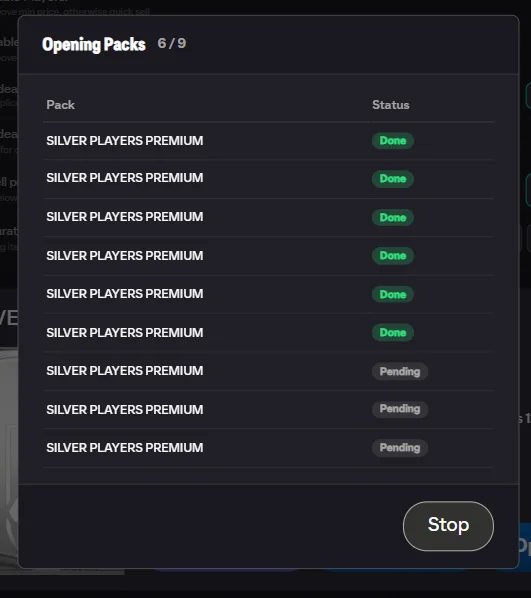
Tap "Open All"
The "Opening Packs" progress modal shows a counter (e.g. 3 / 12) with per-pack status rows: Pending, Opening..., Done, or Failed. A Stop button lets you halt mid-batch.
Review results
The "PACK RESULTS — N Items" modal shows items grouped into sections: Items, Untradeable Duplicates, Tradeable Duplicates, Managers, Consumables. Each item shows its action label (e.g. "Club", "Listed @ 5K", "+200 Coins").
Batch Solve — All Daily SBCs
Solve and submit all daily SBCs in one automated sequence.
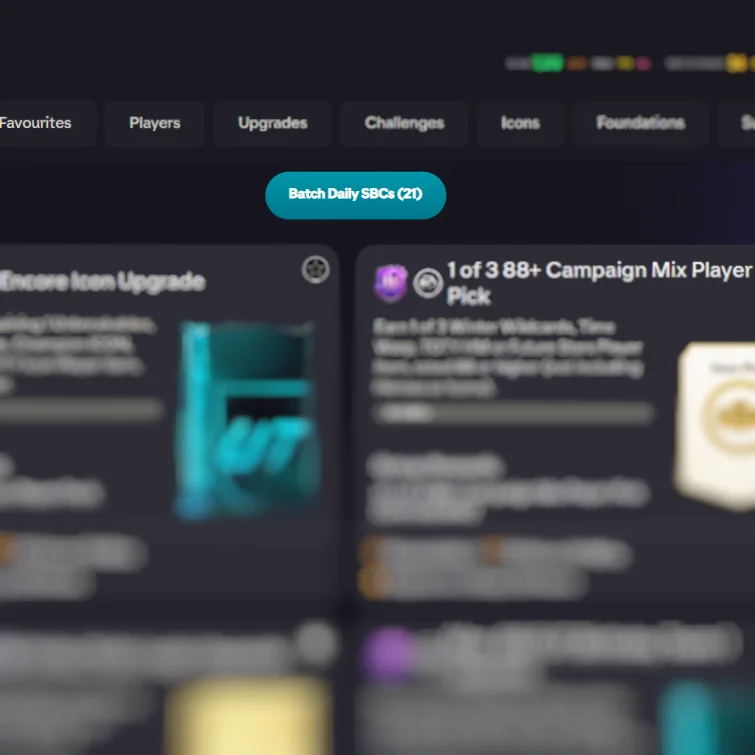
Tap "Batch Daily SBCs (N)" on the SBC Hub
The button appears at the top of the SBC Hub showing the count of available daily SBCs.
Select SBCs and configure
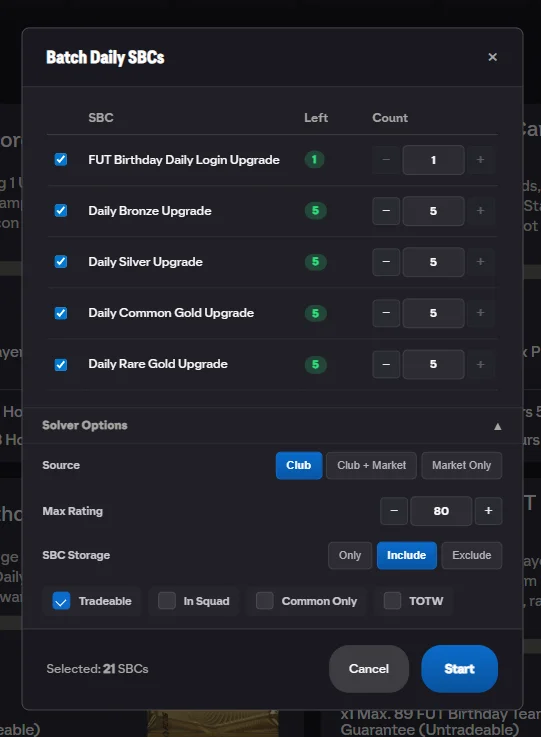
The "Batch Daily SBCs" config modal lists each daily SBC with checkboxes and a "Selected: N SBCs" counter. Set Source (Club / Club + Market / Market Only), Max Rating, SBC Storage, and filter checkboxes.
Watch the progress
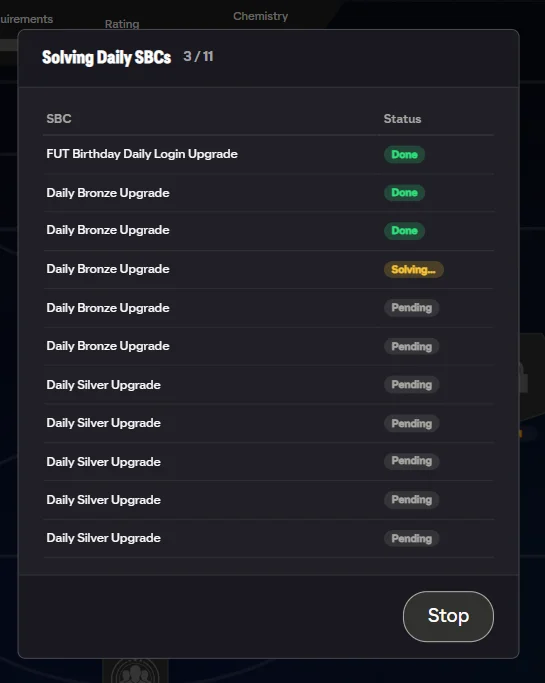
The "Solving Daily SBCs" modal shows a counter (e.g. 3 / 5) with per-SBC status: Pending, Solving..., Done, Failed, or Rate limited — waiting.
Review results
The "BATCH SOLVE COMPLETE" summary shows five stats: Completed, Failed, Players used, Tradeable cost, Untradeable cost. Plus a per-SBC breakdown table and "View Players" button.
Set Solve — Complete Full Sets
Solve every challenge in an SBC set sequentially.
Tap "Solve All (N)" on the set page
The button appears on any SBC set page showing the remaining challenge count. Changes to "Solve (1)" when one challenge remains.
Configure in the "Solve All Challenges" modal
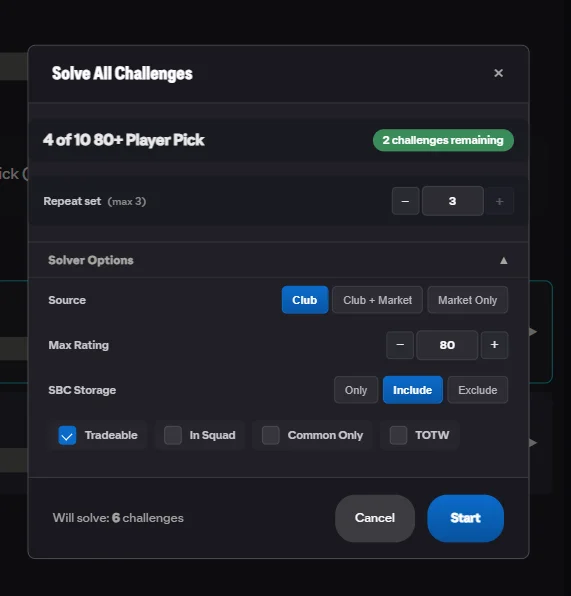
Shows the set name, "N challenges remaining" badge, Source/Filters/Storage options. For repeatable sets, a "Repeat set" toggle with a solve count stepper appears.
Watch progress, then review results
Per-challenge status rows show Pending / Solving... / Done / Failed. The results summary shows the same five-stat breakdown as Batch Solve, plus a "View Players" button listing every player used.
Repeat Solve — Multiple Runs
Run repeatable SBCs multiple times from the solve panel.
Open a repeatable SBC
Navigate to any repeatable SBC and tap Find Squad to open the solve panel.
Set the Repeat count
The Repeat stepper in the panel footer has − and + buttons. Shows "(max N)" based on the challenge's remaining repeats. Free users are locked to 1.
Tap Find Squad
Solves, fills, submits, re-enters, and repeats automatically for the set count. Progress is tracked the same way as Batch Solve with per-challenge status rows.
Quick List & Bulk Transfer Actions
One-tap listing at market price, plus bulk tools for your transfer list and unassigned pile.
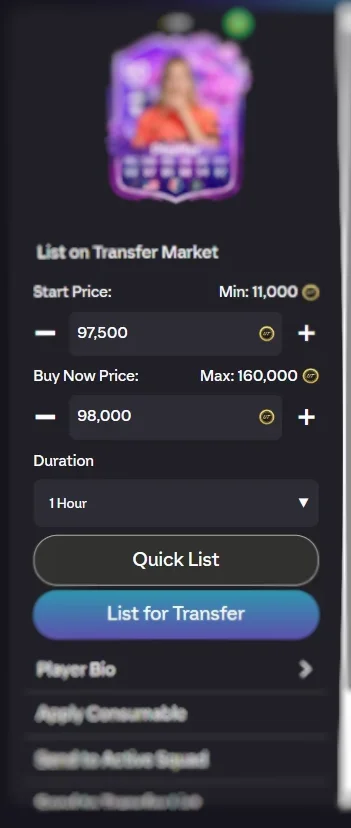
Quick List a tradeable player
Open any player card and tap Quick List. The extension fetches the current lowest BIN, then auto-fills Start Price (market price − 100, minimum 150) and Buy Now Price (= market price). You see a confirmation: "Prices set: [start] / [BIN]".
Transfer list bulk actions
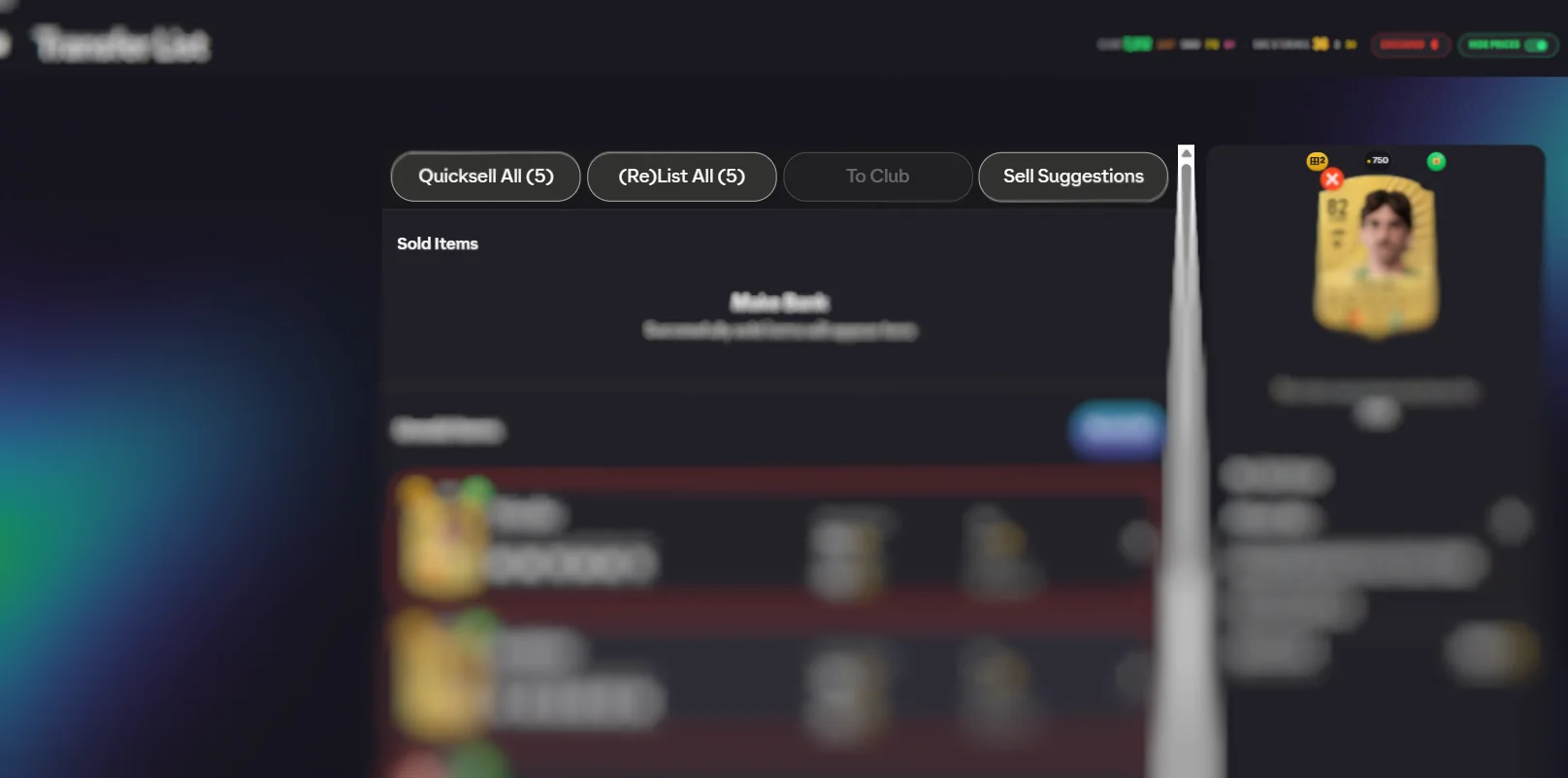
On the Transfer List page, four buttons appear above your items:
- Quicksell All (N) — opens a modal listing all expired discardable items with their discard values. Select individually or use Select All, then confirm.
- (Re)List All (N) — opens a modal with expired tradeable items, fetches live market prices, and lets you pick a listing duration (1h / 3h / 6h / 12h). Shows a progress counter as items are relisted.
- To Club (N) — one-tap move of all non-duplicate items back to your club.
- Sell Suggestions — scans your club for tradeable items ranked by sell value. Paginated modal (5 per page) with filter tabs: All, Players, Items. Duplicates are tagged with a red DUPE badge.
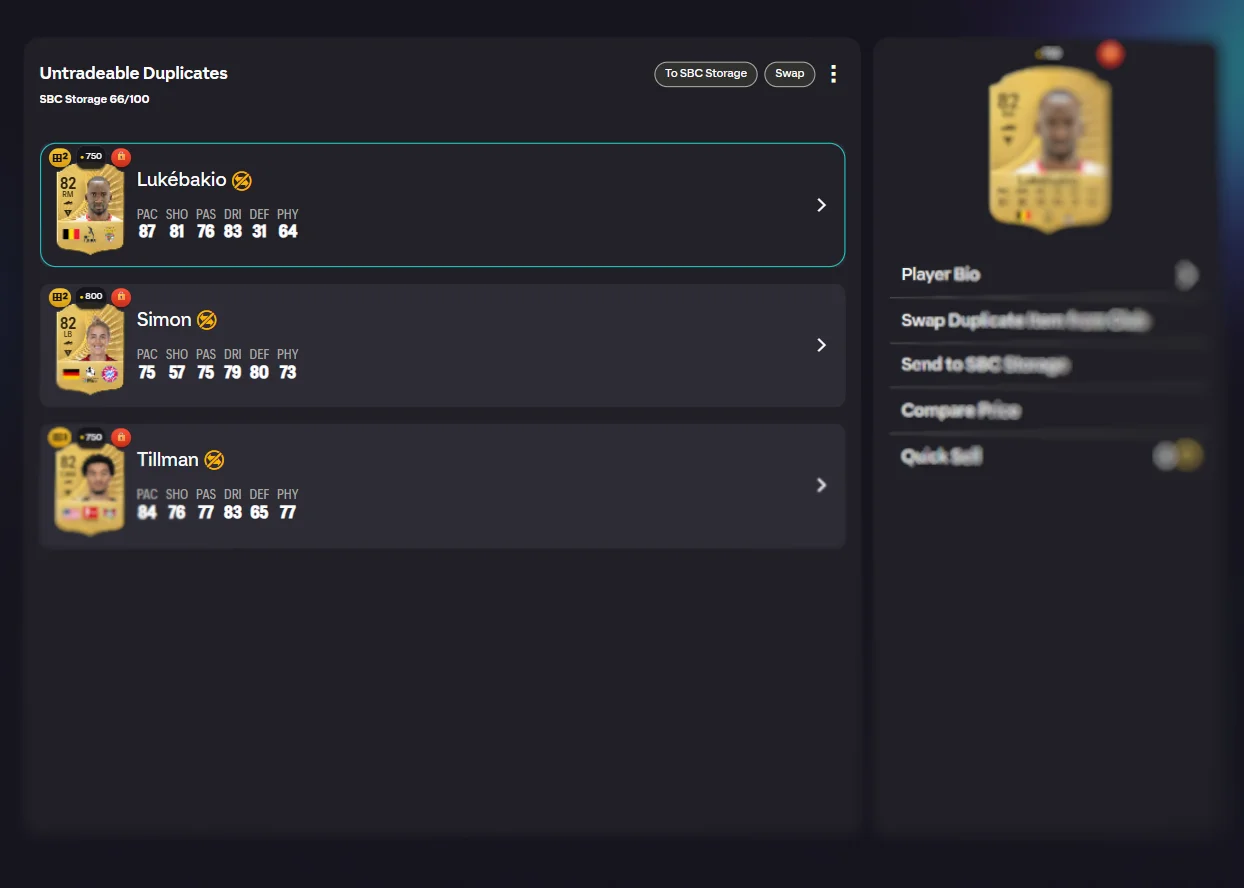
Unassigned pile actions
Buttons appear next to each section header on the Unassigned page:
- Untradeable Duplicates — To SBC Storage sends all storable dupes to storage in one tap. Swap replaces tradeable club versions with their untradeable duplicates (freeing the tradeable copy to sell).
- Tradeable Duplicates — List on Market lists every tradeable dupe at its lowest market price. Items below the minimum sell threshold are skipped automatically.
- Non-Duplicates — To Club sends all remaining items to your club.
Ready to get started?
Install FC Helper free. No account, no tracking, no nonsense.